Thursday, March 11, 2021

How to Set Timeout and Max Retries in Python Request Module

Introduction

In this tutorial we will use python requests module with max retries and timeout values. It is strongly recommended to implement retries and timeout mechanism for production code as connections can close at any time, even in non-error conditions. HTTP applications have to be ready to properly handle unexpected closes. If a transport connection closes while the client is performing a transaction, the client should reopen the connection and retry one time, unless the transaction has side effects. 

1. Set Max Retries Values

We will create python session and define our retry strategy for that. Our retry strategy will consists of connect retries, read retries, backoff factor (delay between attempts after second try), and status_forcelist (list of status, against which we want to retry).

Use following code to create request session, and setup retry strategy.

# import request module

import requests

# define some values of retries. You can update it according to your requirements.

MAX_RETRIES = 3

BACKOFF = 1

STATUS_FORCELIST = [

    413,  # Payload Too Large

    429,  # Too Many Requests

    500,  # Internal Server Error

    502,  # Bad Gateway

    503,  # Service Unavailable

    504  # Gateway Timeout

]

# Set both connect and read timeout. (we can set only one value to represent both.)

REQUEST_TIMEOUT = (3.05, 10)  # (connect, read)

# create request session

session = requests.Session()

# set some default values in session header, these values will be merged with request header, if we want to send some additional headers at runtime.

session.headers.update({'Connection': 'close'})

# define retry strategy, and set required values

retry = Retry(

total=MAX_RETRIES,  # Total number of retries to allow. Takes precedence over other counts.

read=MAX_RETRIES,  # How many connection-related errors to retry on.

connect=MAX_RETRIES,  # How many times to retry on read errors.

backoff_factor=BACKOFF,  # A backoff factor to apply between attempts after the second try

status_forcelist=STATUS_FORCELIST,

)

adapter = HTTPAdapter(max_retries=retry)

session.mount('http://', adapter)

session.mount('https://', adapter)

At this point, we have session ready with required values of retries, back off factor, and status force list. We will use this session to send API requests.

2. Set Timeout Value

Use following code to send API requests with required value of request timeout we have set above

response = session.get('httpbin.org/delay/10', timeout=REQUEST_TIMEOUT)

This request will attempt retries against given list of status force list before raising any exception.

Conclusion

We have configured both timeout and max retries of python request module. Make sure to set some appropriate value of timeout on production, by default value of timeout is None which means it never expire which can cause your production code to hang for too long.

Wednesday, March 10, 2021

How to Create and Upload an In Memory CSV File to Amazon S3 Bucket using Python

Introduction

In this tutorial we will create an in memory csv file and upload to Amazon S3 bucket using python package boto3. We will cover two scenarios here, 1). create an in memory file from nested lists (list of lists), 2). create in memory file from list of dictionaries, and then upload to Amazon S3.

1. Install dependencies

We need to install required dependencies in order to complete this tutorial. Install following package in your OS directly or first create virtual environment activate it and then install package in that virtual environment.

Run following command to create virtual environment (in windows)

virtualenv venv  # venv is name of virtual environment

Activate virtual environment:

.\venv\Scripts\activate.bat

Install following package(s) in virtual environment:

pip install boto3

2. Create In memory File

Create new file with extension .py and import following module:

import csv

import boto3

from io import StringIO

Create list of lists as following, first nested list will represent header of file, and other nested lists will represent data of file.

list_of_lists = [['name', 'age'], ['name 1', 25], ['name 2', 26], ['name 3', 27]]

If we have list of dictionaries, we can first convert that list of dictionaries to list of lists and then proceed with next steps. Use following code to convert list of dictionaries to list of lists.

# input list

list_of_dicts = [{'name': 'name 1', 'age': 25}, {'name': 'name 2', 'age': 26}, {'name': 'name 3', 'age': 27}]

# convert list of dictionary to list of lists

file_data = []

header = list(list_of_dicts[0].keys())

file_data = [[d[key] for key in header] for d in list_of_dicts]

file_data = [header] + file_data

At this point, we have converted list of dictionaries to list of lists, use following code to create in memory file and write data in it.

# create in memory file and write data in it.

file_to_save = StringIO()

csv.writer(file_to_save).writerows(file_data)

file_to_save = bytes(file_to_save.getvalue(), encoding='utf-8')

file_name_on_s3 = 'my_data.csv'

3. Save In Memory File to Amazon S3

We have created an in memory file, now use following code to save/upload that in memory file to Amazon S3.

# create boto3 client using your AWS access key id and secret access key

client = boto3.client('s3',

                      aws_access_key_id='your access key',

                      aws_secret_access_key='your secret key')

# save in memory file to S3

response = client.put_object(

Body=file_to_save,

Bucket='your bucket name',

Key=file_name_on_s3,

)

Conclusion

We have created an in memory file from list of lists and/or list of dictionaries, and uploaded to Amazon S3 bucket. Please let me know in comments if you have any better approach to implement this.

HAPPY CODING!!


Saturday, October 3, 2020

How to Upload Excel File to Amazon S3 Bucket in Python

In this tutorial we will learn how to upload excel file to Amazon S3 bucket in python using Amazon's SDK Boto3. To complete this tutorial, we need to perform following steps.

  1. Get you access key and secret key from AWS management console.
  2. Install boto3 module.
  3. Write python code to upload file to Amazon S3 bucket.

1. Get your access key and secret key from AWS management console.


We assume you already have a Amazon Web Services account. If you don't have, create new account.
  1. Login to AWS management console.
  2. Click on your username at the top-right of the page to open the drop-down menu.
  3. Click on My Security Credentials. (Your Security Credential tab will open by default)
  4. Click on the Access keys (access key ID and secret access key)
  5. To create a new access key and secret, click on the Create New Access Key button.
  6. Download the .csv file containing your access key and secret.

2. Install boto3 module


Use pip as your package installer, run the below command in cmd.
pip install boto3
If you are working in virtual environment then make sure to activate your virtual environment first.

3. Write python code to upload file to Amazon S3 bucket.


# import module
import boto3
from botocore.exceptions import ClientError

# declare constants
AWS_ACCESS_KEY =  "xxxxxxxxxx"
AWS_SECRET_KEY =  "xxxxxxxxxxxxxxxxxxxxxxxx"
S3_BUCKET = 'bucket_name'


def upload_file_to_s3(file_name, bucket, object_name):
    """
    :param file_name: file name to upload
    :param bucket: S3 bucket
    :param object_name: S3 object name
    :return: True if successful upload else False
    """
    
    s3 = boto3.client("s3", aws_access_key_id=AWS_ACCESS_KEY,
                      aws_secret_access_key=AWS_SECRET_KEY)
    
    try:
        s3.upload_fileobj(
            file_name,
            bucket,
            object_name,
            ExtraArgs={"ContentType": "application/vnd.openxmlformats-officedocument.spreadsheetml.sheet", 
                       "ContentDisposition": "attachment"}
        )
    except ClientError as e:
        return False
    return True

upload_file_to_s3(local_file_name, S3_BUCKET, s3_object_name)

Please let me know if you have any question, or have some better way to do this. :)

Tuesday, January 30, 2018

How To: Schedule Cron Job using python-crontab

We have already learnt how to schedule cron job manually. Now we will schedule cron job using python code.

Create an empty python file with .py entension.

Paste following code step by step:

# Create CronTab instance.
cron = CronTab(user=True) 


# Remove all previous jobs having comment id 'My_Job'
cron.remove_all(comment='My_Job')


# Schedule new job having comment id 'My_Job'
job = cron.new(comment='My_Job', command='/usr/bin/python3 /home/root/Schedular/scheduleCronJob.py >> /home/root/Schedular/Logs.txt')

# Set timeslot to run this job
job.setall(str(timeSlot))

# Write to file.
cron.write()


This is all, save file and run/execute this python file.

Install following required packages before execution of file.

pip3 install python-crontab
pip3 install schedule


If you have also installed crontab package then you may see some errors, to uninstall crontab use following command:

pip3 uninstall crontab


Upon successful execution, this will schedule a new cron job in ubuntu.

To list existing cron jobs enter following command in terminal window:

crontab –l


Click here for complete code.

How To: Schedule Cron Job in Ubuntu

Open a Terminal Window (Command Line) in ubuntu.
Type following command and press Enter.


 crontab -e


This will open editor for you. Write cron command at the end of file.

Use sudo if root privileges required. e.g


 sudo crontab -e


Use following pattern to create new cron job syntax:
  1. The number of minutes after the hour (0 to 59) 
  2. The hour in military time (24 hour) format (0 to 23) 
  3. The day of the month (1 to 31) 
  4. The month (1 to 12) 
  5. The day of the week (0 or 7 is Sun, or use name) 
  6. The command to run 

For example


 0 7 * * * /path/to/your/script.sh


This syntax will run script.sh at 7:00 AM daily.

File must have executable permissions. Run following command to make file executable.


  chmod +x /path/to/your/script.sh


If you want to schedule python file to run via cron, use following command instead.


  0 7 * * * /usr/bin/python3 /path/to/your/pythron-file.py


Just make sure you have already installed python3.

To list existing cron jobs enter following command:


 crontab -l


To remove an existing cron job enter following command:


 crontab -e


Delete the line that contains your cron job and save file.

Wednesday, June 28, 2017

How To: Create Thumbnail Image From Base64 Encoded String using Python 3

In this tutorial we 'll create thumbnail image from base64 encoded string received from client/user using python 3.
Our purpose is to create a thumbnail image for each image saved by client/user so that we can send back thumbnail images instead large size images while sending bulk data over the internet.

We are receiving image in form of base64 encoded string, We 'll apply following steps on it for complete result.

1). Decode string using base64 technique.
2). Create temporary image from decoded string.
3). Create thumbnail from this temporary image.
4). Encode thumbnail using base64 technique, so that we can save thumbnail as well in our database.
5). Remove both newly created temporary image and its thumbnail after saving to database.

1). Decode string using base64 technique.

# UserImage holds base64 encoded string. 
TmpUserImage = UserImage.replace("data:image/jpeg;base64,", "") 
ImgDataDecoded = base64.b64decode(TmpUserImage)

2). Create temporary image from decoded string.

# Using uuid for unique file name.
TmpUUID = str(uuid.uuid4()) 
# File name
FileName = TmpUUID + '_image.jpeg' 
# Thumbnail name
FileNameThumb = TmpUUID + '_image_80x80.jpeg' 
# Writing to file.
with open(FileName, 'wb') as f: 
   f.write(ImgDataDecoded)

3). Create thumbnail from this temporary image.

image = Image.open(FileName) 
size = (80, 80) 
thumb = ImageOps.fit(image, size, Image.ANTIALIAS) 
thumb.save(FileNameThumb)

4). Encode thumbnail using base64 technique, so that we can save thumbnail as well in our database.

with open(FileNameThumb, "rb") as thmbn: 
    TmpStr = base64.b64encode(thmbn.read()) 
TmpStr = "data:image/jpeg;base64," + str(TmpStr)[2:-1] 
# Encode to utf-8 before saving to database 
# (don't forget to decode after fetching from database).
TmpStr = bytes(TmpStr,"utf-8")
# Now save TmpStr to database.

5). Remove both newly created temporary image and its thumbnail after saving to database.

if os.path.isfile(FileName): 
    os.remove(FileName) 
if os.path.isfile(FileNameThumb): 
    os.remove(FileNameThumb)

Don't forget to include following libraries.

# For Thumbnail 
from PIL import Image, ImageOps 
import base64, uuid, os

This is all, you have done it. Please ask in comment if there is any confusion. Happy Coding -:)

Sunday, May 28, 2017

How To: Set and Get Cursor Position in Textbox using JQuery

In this tutorial, we 'll learn how to set and get cursor position in text box using jquery.
1). Open notepad, and paste following html code in it.

<html>
<head>
 <title>Home</title>
</head>
<body>
 <input id="first_name" type="text" value="webdesignpluscode" />
 <input onclick="SetPosition();" type="button" value="Set Position" />
 <input onclick="GetPosition();" type="button" value="Get Position" />
</body>
</html>

2). Click File then Save As... in notepad menu. Save As dialogue will open
3). Enter "home.html" in File name:
4). Select All Files in Save as type:
5). Click Save. Notepad file will be saved as html page.
6). Now open this html page in edit mode.
7). Add following online JQuery library reference inside <head> tag.

<script src="https://code.jquery.com/jquery-1.10.2.js" type="text/javascript"></script>

You can download and add to project locally.

8). Now add java script block inside <head> tag and copy following code there.


<script type="text/javascript">

// Set Cursor Position
 $.fn.setCursorPosition = function (position)
{
 this.each(function (index, elem) {
 if (elem.setSelectionRange) {
 elem.setSelectionRange(position, position);
 }
 else if (elem.createTextRange) {
 var range = elem.createTextRange();
 range.collapse(true);
 range.moveEnd('character', position);
 range.moveStart('character', position);
 range.select();
 }
 });
 return this;
 };

 // Get cursor position
 $.fn.getCursorPosition = function ()
{
 var el = $(this).get(0);
 var position = 0;
 if ('selectionStart' in el) {
 position = el.selectionStart;
 }
 else if ('selection' in document) {
 el.focus();
 var Sel = document.selection.createRange();
 var SelLength = document.selection.createRange().text.length;
 Sel.moveStart('character', -el.value.length);
 position = Sel.text.length - SelLength; }
 return position;
 };

 function SetPosition() {
 $("#first_name").setCursorPosition(5);
 $("#first_name").focus();
 }

 function GetPosition() {
 alert($("#first_name").getCursorPosition());
 $("#first_name").focus();
 }
 </script>

Complete code can be downloaded from this git repository.

This is all. You have done. Save file, and view it in any browser.

Sunday, March 26, 2017

Python Part5: Set and exception handling Try except finally

Set

  • Unordered collection of unique, immutable objects. 
  • Literals: 
    • delimited by { and } 
  • Single comma separated items. 
    • >>> p = {1, 2, 3, 4} 
    • >>> p 
    • {1, 2, 3, 4} 
  • Empty { } makes a dict, so for empty set use the set() constructor. 
    • >>> e = set() 
    • >>> e 
    • set()
  • Set() constructor accepts: 
    • Iterable series of values. 
      • >>> s = set([1, 2, 3, 4]) 
      • >>> s 
      • {1, 2, 3, 4} 
  • Duplicates are discarded. 
    • >>> t = [1, 2, 3, 1, 4] 
    • >>> set(t) 
    • {1, 2, 3, 4} 
  • Often used specifically to remove duplicates – not order preserving. 
  • Order is arbitrary. 
    • >>> for x in {1, 2, 4, 8, 32} 
    • print(x)
  • Use in and not in operators. 
    • >>> q = {2, 9, 6, 4} 
    • >>> 3 in q 
    • False 
    • >>> 3 not in q 
    • True 
  • Add(item) inserts a single element. 
    • >>> k = {2, 4} 
    • >>> k 
    • {2, 4} 
    • >>> k.add(8) 
    • >>> k 
    • {2, 4, 8}
  • Duplicates are silently ignored. 
    • >>> k.add(8) 
    • >>> k 
    • {1, 2, 8} 
  • For multiple elements use update(items) passing any iterable series. 
    • >>> k.update([9, 10]) 
    • >>> k 
    • {1, 2, 8, 9, 10} 
  • Remove(item) requires that item is present, otherwise raises KeyError. 
    • >>> k.remove(9) 
    • >>> k 
    • {1, 2, 8, 10}
  • Discard(item) always succeeds. 
    • >>> k.discard(9) 
  • Copy set using S.copy() method. 
    • >>> j = k.copy() 
  • Use constructor. Set(s) 
    • >>> m = set(j) 
  • Copies are shallows. 
  • S1.union(s2) method. 
    • Union is commutative.
  • s.intersection(t) method 
    • Intersection is commutative. 
  • s.difference(t) method. 
    • Difference is non-commutative. 
  • s.symmetric_difference(t) method 
    • Symmetric difference is commutative. 
  • s.issubset(t) method 
  • s.issuperset(t) method. 
  • s.isdisjoint(t)

Handle exceptions. Try … except … finally

  • try: 
    • x = 5 
  • except: 
    • message = str(sys.exc_info()[1]) 
    • x = -1 
  • finally: 
    • # final-block 
    •  x = 0

Python Part4: For loop, argument passing and Tuple

For loop

  • items = [a, b, c, d] 
  • for item in items: 
    •  print(item) 
  •  for i in range(5) 
    •  print(i)

Argument passing

  • Function with arguments.
  • def modify(k) 
    •  k.append(13) 
    •  print(k) 
  • m = [6, 7, 8, 9] 
  • modify(m) 
  • Default arguments.
  • def DisplayMessage(m='nothing') 
    • print(m) 
  • message = 'Welcome to python' 
  • DisplayMessage(Message) 
  • DisplayMessage()

Tuple

  • Heterogeneous immutable collection. 
  • Delimited by parentheses.
    • For example t = ("norway", 4.953, 3) 
  • Items separated by commas.
  • Element access with square brackets and zero-based index. T[index] 
    • >>> t[0] 
    • 'Norway'
  • len(t) for number of elements. 
    • >>> len(t) 
    • 3
  • Iteration with for loop. 
    • for item in t: 
    • print(item) 
      • Norway 
      • 4.953 
  • Concatenation with + operator. 
    • t + (338186.0, 2659) 
    • ('Norway', 4.953, 3, 338186.0, 2659) 
  • Reputation with * operator. 
    • t * 3 
    • ('Norway', 4.953, 3, 'Norway', 4.953, 3, 'Norway', 4.953, 3)
  • Tuple can contain any kind of object. 
  • Nested tuples.
    • A = ((245, 446), (90, 456)) 
  • Chain square-brackets indexing to access inner elements. 
    • A[1][0] 
    • 90 
  • Can’t use one object in parentheses as a single element tuple. 
  • For a single element tuple include a trailing comma. 
    • K = (234, ) 
  • The empty tuple is simply empty parentheses. 
    • E = ()
  • Delimiting parentheses are optional for one or more elements.
    • p = 1, 1, 1, 4, 6, 19 
    • >>> p 
    • (1, 1, 1, 4, 6, 19) 
  • Tuples are useful for multiple return values. 
    • def MinMax(items) 
      • Return Min(items), Max(items) 
    • >>> MinMax([33, 30, 9, 82, 87]) 
    • (9, 87)
  • Tuple unpacking allow us to destructure directly into named references. 
    • lower, upper = MinMax([33, 30, 9, 82, 87]) 
    • >>> lower 
    • >>> upper 
    • 87
  • Tuple unpacking works with arbitrarily nested tuples (although not with other data structure) 
    • (a, (b, (c, d))) = (4, (3, (2, 1))) 
    • >>> a 
    • >>> b 
    • >>> c 
    • >>> d
    •  1 
  • a, b = b, a is the idiomatic python swap.
  • Use the tuple constructor to create tuples from other iterable series of objects. 
    • >>> tuple([234, 444, 897]) 
    • (234, 444, 897) 
    • >>> tuple("car") 
    • ('c', 'a', 'r') 
  • The in and not in operators can be used with tuples - and other collection types – for membership testing. 
    • >>> 5 in (3, 5, 9, 13) 
    • True 
    • >>> 5 not in (3, 5, 9, 13) 
    • False

Saturday, March 25, 2017

Python Part3: Bytes, Lists, Shallow copies and Dictionaries

Bytes

  • Immutable sequence of bytes.

Lists

  • Mutable sequences of objects.
    • e.g a = [1, 2, 3 ,4]
  • Get or set value using index
    • e.g a[1] = 20 and print(a[1])
  • Negative integers index from the end.
  • The last element is at index -1
  • Slicing extracts part of a list.
    • Slice = seq[start:stop]
  • Slice range is half open-stop not included.
    • >>> s = [1, 2, 3, 4, 5, 6]
    • >>> s[1:4]
    • 2, 3, 4
  • Slicing works with negative indexes. 
    • >>> s[1:-1] 
    • 2, 3, 4, 5 
  • Omitting the stop index slices to the end. 
    • Slice_to_end = seq[start:] 
  • Omitting the start index slices from the beginning. 
    • Slice_from_beginning = seq[:stop] 
  • Half open ranges give complementary.
    • slices S[:x] + s[x:] == s 
  • Omitting the start and stop indexes slices from beginning to the end – a full slice. 
    • Full_slice = seq[:]
  • Important idiom for copying lists: 
  • Copy list using 
    • Copy() method 
      •  U = seq.copy() 
    • List() constructor 
      •  V = list(seq) 
  • All of these techniques create shallow copies, mean create new list containing same object reference to source list.

Shallow copies: Examples

  • >>> A = [[1, 2], [3, 4]] 
  • >>> B = A[:]      (copy using full slice) 
  • >>> A is B      (both objects have different identities.) 
    • False 
  • >>> A == B 
    •  True 
  • >>> A[0] 
    • [1, 2] 
  • >>> B[0] 
    • [1, 2] 
  • A[0] is B[0]      (both objects have same identities.) 
    • True
  • >>> A[0] = [8, 9]      (This create a new list and set reference of A[0] to this.) 
  • >>> A[0] 
    • [8, 9] 
  • >>> B[0]      (B[0] is unchanged because it has reference to old list.) 
    • [1, 2] 
  • >>> A[1].append(5)      (A[1] and B[1] still have reference to same list. So changes reflects in both places.) 
  • >>> A[1] 
    • [3, 4, 5] 
  • >>> B[1] 
    • [3, 4, 5] 
  • >>> A      (Now both lists look like this) 
    • [[8, 9], [3, 4, 5]] 
  • >>> B 
    • [[1, 2], [3, 4, 5]]
  • Repeat lists using the * operator. 
  • Most often used for initializing a list of known size with a constant. 
    • S = [constant] * size 
  • Multiple references to one instance of the constant in the produced list. 
  • Repetition is shallow. 
    • >>> S = [[1, 2]] * 5 
      • [[1, 2], [1, 2], [1, 2], [1, 2], [1, 2]] 
    • >>> S[3].append(7) 
    • >>> S 
      • [[1, 2, 7], [1, 2, 7], [1, 2, 7], [1, 2, 7], [1, 2, 7]] 
  • Index(item) returns the integer index of the first equivalent element raises value error if not found. 
    • I = w.index(‘the’)
  • Count(item) returns the number of matching elements. 
    • W.count(‘the’) 
  • The in and not in operators test for membership. 
    • 5 in [1, 2, 3] 
    • 5 not in [1, 2, 3] 
  • Del seq[index] to remove by index. 
  • Seq.remove(item) to remove by value. Raises value error if not found. 
  • Insert items with seq.insert(index, item) 
  • Concatenate lists with + operator 
    • >>> M = [1, 2] 
    • >>> N = [3, 4] 
    • >>> K = m + n 
    • >>> k 
      • [1, 2, 3, 4]
  • In-place extension with += operator or extend method. 
    •  >>> K += [6, 7] 
    •  >>> K 
      •  [1, 2, 3, 4, 6, 7] 
    •  >>> K.entend([11, 12]) 
    •  >>> K 
      •  [1, 2, 3, 4, 6, 7, 11, 12] 
  • K.reverse() reverses in place. 
  • K.sort() sorts in place. 
  • K.sort(reverse=true) gives descending sort.

Dictionaries

  • Unordered mapping from unique, immutable keys to mutable values. 
  • Recap literals: 
    • Delimited by { and } 
    • Key-value pairs comma separated 
    • Corresponding keys and values joined by colon. 
    • Keys must be unique 
    • Urls = {'google':'http://google.com', 'microsoft':'http://Microsoft.com' } 
    • >>> url['google'] 
      • http://google.com
  • Dict() constructor accepts: 
    • Iterable series of key-value 2-tuples. 
      • >>> Names_and_ages = [('Alice', 32), ('Bob', 48)] 
      • >>> d = dict(Names_and_ages) 
      • >>> d 
        • {'Alice':32, 'Bob':48} 
  • Keyword arguments-requires keys are valid python identifiers. 
  • A mapping, such as another dict. 
    • >>> Phonetic = dict(a='alfa', b='bravo') 
    • >>> phonetic 
      • {'a':'alfa', 'b':'bravo'}
  • d.copy() for copying dictionaries. 
    • >>> e = d.copy() 
    • >>> e 
      • {'Alice':32, 'Bob':48} 
  • Or simply dict(d) constructor 
    • >>> f = dict(e) 
    • >>> f 
      • {'Alice':32, 'Bob':48}
  • Extend a dictionary with update() 
    • >>> g = dict('c':'charle', 'f':'fort') 
    • >>> f.update(g) 
    • >>> f 
      • {'a':'alfa', 'b':'bravo', 'c':'charle', 'f':'fort'} 
  • Update replaces values corresponding to duplicate keys. 
  • Iteration is over keys. 
  • Get corresponding value with d[key] lookup. 
    • >>> for key in f: 
    •  print("{key} => {value}".format(key= key, value=f[key])) 
  • Use values() for an iterable view onto the series of values 
  • No efficient way to get the key corresponding to a value. 
    •  >>> for value in f.values(): 
    •  print(value)
  • Keys() method gives iterable view onto keys – not often needed. 
    • >>> for key in f.keys(): 
    •  print(key) 
  • Use items for an iterable view onto the series of key-value tuples. 
  • Use with tuple unpacking. 
    • >>> for key, value in f.items(): 
    •  print("{key} => {value}".format(key=key, value=value)) 
  • The in and not in operators work on the keys. 
    • >>> 'a' in f 
    • >>> 'h' in f
  • Use del keyword to remove by key. del d[key] 
    • >>> del f['a'] 
  • Keys must be immutable. 
  • Values may be mutable. 
  • The dictionary itself is mutable.

Python Part2: Conditional statements, While loops, Strings and Range

Conditional statements

If expr:
     print("expr is true")

If expr:
     print("It's true")
else:
     print("its’s false")

Python provides the elif keyword to eliminate the need for nested if … else structure.

h = 5
if h > 5:
      print("greater than 5")
elif h < 2:
      print("less than 2")
else:
      print("between 2 and 5.")

While loops

# While loop 
 While expr: 
     print("loop while expr is true") 

# Do-while in python 
 While True: 
     If expr: 
          Break

Strings

  • Immutable sequence of Unicode codepoints.
    • Immutable mean when you construct a string you can't modify its content.
  • Strings with Newlines
    • Multiline strings
      • """ this is
      • Multiline string"""
    • Escape sequences
      • This is \nmultiline \nstring.
  • len(s) gives number of codepoints(characters).
  • The + operator can be used for string concatenation.
    • >>> "This" + "is" + "a" + "string"
    • Thisisastring
  • Strings are immutable, so the += operator re-binds the reference to a new object. 
  • Use sparingly, concatenation with + or += can cause performance degradation. 
  • Call the join() method on the separator string. 
    • >>> Numbers = ';'.join([1, 2, 3, 4]) 
    • '1;2;3;4' 
  • Use the split() to divide a string into a list. 
    • >>> Numbers.split(';') 
    • [1, 2, 3, 4] 
  • Without an argument, split() divides on whitespace.
  • Join()-ing on an empty separator is an important and fast way of concatenating a collection of strings. 
  • The partition() method divides a string into three around a separator: prefix, separator, suffix.
  • Tuple unpacking is useful to destructure the result.

Range

  • Arithmetic progression of integers. 
  • Stop value is one-past-the-end. 
    • >>> range(5) 
    • range(0, 5) 
  • Ranges are 'half open'-start is include but stop is not. 
    • >>> for I in range(5) 
    • print(I) 
    • 4
  • Stop value of a range used as start value of consecutive range. 
    • >>> list(range(5, 10)) 
    • [5, 6, 7, 8, 9] 
    • >>> list(range(10, 15)) 
    • [10, 11, 12, 13, 14] 
  • Optional third step value. 
    • >>> List(range(0, 10, 2)) 
    • [0, 2, 4, 6, 8] 
  • Range(stop) range(10) 
  • Range(start:stop) range(0, 10) 
  • Range(start:stop:step) range(0, 10, 2)

Python Part1: Introduction, Install on windows, Scalar Types and Relational Operators

Introduction to python

  1. Open source programming language developed in late 1980’s.
  2. Strongly typed language in the sense that every object in the language has a definite type.
  3. At the same time, it is dynamically typed means no type checking prior to running it.
  4. General purpose language. 
  5. There are some areas where it's less suitable than others, for example, in extremely time sensitive or memory constrained environments.

Install python on windows

Scalar types

  • Int
  • Float
  • None
  • bool

Relational operators

  • ==      value equality
  • !=       value inequality
  • <        less-than
  • >        greater-than
  • <=      less-than or equal to
  • >=      greater-than or equal to

Sunday, June 26, 2016

How To:Set python virtual environment as python interpreter in eclipse

In this lesson we 'll set virtual env as default interpreter in pydev eclipse project.

1). In PyDev Package Explorer panel, right click on project name and select Properties, a new window will open.

2). Click PyDev - Interpreter/Grammar -> Click here to configure an interpreter not listed, a new window will open.

3). Click PyDev -> Interpreters -> Python Interpreter on left panel.

4). In Python Interpreters section click New -> Browse

5). Open virtual environment folder, move to Scripts folder, select python.exe file and click Open.

6). Enter venv in Interpreter Name: instead of default value and click Ok. You can choose name of your own choice.

7). Select newly added python interpreter iPython Interpreters section and click OK

8). Now select newly added python interpreter under Interpreter drop down list and click OK.

How To:Import python project in eclipse

In this lesson we 'll import python django project in pydev eclipse.
Copy these two files from some existing pydev eclipse project to root folder of new project which you want to import in eclipse.
.project
.pydevproject

Open .project file in notepad and change name to your_project_name.
If you don't have these files then you can create them yourself.


Open notepad, copy following text, click File -> Save As... -> Enter ".project" in File name: -> Select All Files from Save as type: drop down list.


<?xml version="1.0" encoding="UTF-8"?>
<projectDescription>
<name>your_project_name</name>
<comment></comment>
<projects>
</projects>
<buildSpec>
<buildCommand>
<name>org.python.pydev.PyDevBuilder</name>
<arguments>
</arguments>
</buildCommand>
</buildSpec>
<natures>
<nature>org.python.pydev.django.djangoNature</nature>
<nature>org.python.pydev.pythonNature</nature>
</natures>
</projectDescription>

Now again open notepad, copy following text, click File -> Save As... -> Enter ".pydevproject" in File name: -> Select All Files from Save as type: drop down list.


<?xml version="1.0" encoding="UTF-8" standalone="no"?>
<?eclipse-pydev version="1.0"?><pydev_project>
<pydev_variables_property name="org.python.pydev.PROJECT_VARIABLE_SUBSTITUTION">
<key>DJANGO_MANAGE_LOCATION</key>
<value>manage.py</value>
</pydev_variables_property>
<pydev_pathproperty name="org.python.pydev.PROJECT_SOURCE_PATH">
<path>/${PROJECT_DIR_NAME}</path>
</pydev_pathproperty>
<pydev_property name="org.python.pydev.PYTHON_PROJECT_VERSION">python 3.0</pydev_property>
<pydev_property name="org.python.pydev.PYTHON_PROJECT_INTERPRETER">Default</pydev_property>
</pydev_project>

Open eclipse, click File -> Import. New window will open. Now select 'Existing Projects into Workspace' under 'General' and click Next. On new window browse to project root directory and select root folder. Then click finish.

Saturday, June 25, 2016

How To:Create virtual python environment and Install pypi packages in window env

In this lesson we 'll create virtual environment for our python project and install all necessary packages from pypi though cmd, which 'll used in our project.

1). Open directory where you want to create virtual environment.

2). Open cmd in same directory by clicking shift + mouse right key and then select 'open command window here'.


3). Install virtual environment by running following command in cmd. If virtual environment already installed then skip this step.


pip install virtualenv

4). Type following command in cmd and press enter. It will create virtual environment. 


virtualenv env

You can see a new folder is added with name env. You can change name of virtual environment to your own choice, just change the env to Your_Own_Name in later part of command.

5). Now type this command in cmd and press enter. Virtual environment will be activated.


env\scripts\activate

You can see (env) in start of line in cmd.

6). Now we 'll install all necessary package from pypi, which 'll be used in our project. Run following commands in cmd.


pip install django
pip install djangorestframework
pip install django-oauth-toolkit
pip install pymysql
pip install pythondbhelper


Now virtual environment is ready with all necessary pypi packages.

Monday, February 29, 2016

How To: Add Marker/Pin on Google Map

In this lesson we will learn how to add pin/market on google map at specific point (coordinates: latitude and longitude). Add following code to add google map in html page with basic map properties.

<html>
<head>
    <title>Google Map!</title>

    <script src="http://maps.google.com/maps/api/js?sensor=false" type="text/javascript"></script>
    <script type="text/javascript">
        var map = null;

        function initialize() {
            var latlng = new google.maps.LatLng(31.536648, 74.343443);
            var myOptions = {
                zoom: 12,
                center: latlng,
                mapTypeId: google.maps.MapTypeId.ROADMAP
            }

            map = new google.maps.Map(document.getElementById("map_area"), myOptions);

        }

    </script>
</head>
<body onload="initialize()" style="width: 98%; height: 100%;">
    <div id="map_area" style="width: 100%; height: 520px;">
    </div>

</body>
</html>

Now create another java script function AddMarker() to add pin on google map, in this function we will set basic properties of pin like its position ( coordinate: latitude and longitude) and its title. Add following code in <script> </script> tag inside head section of web page.

        function AddMarker() {          
            var myLatlng = new google.maps.LatLng(31.5136648, 74.343443);
            var marker = new google.maps.Marker({
                position: myLatlng,
                map: map,
                title: 'Lahore, Pakistan.'
            });
        }

Now create a new button in html and call this function on onclick event of button. Add following code immediately before </bode> tag.

<input type="submit" onclick="AddMarker()" name="button" title="Add marker" />

Complete code of all steps is

Add Pin on Google Map
Add Marker/Pin on Google Map

This is all. You have done. Save file and view in browser.

How To: Add Google Map in Html Page

Adding google map to html page is very easy and a common practice now a days. In this tutorial we will learn how to add google map in web page step by step.
First create a basic structure of html page.
Open any text editor, paste following code there and save it as GoogleMap.html file.

<html>
<head>
    <title>Google Map!</title>

</head>
<body style="width: 98%; height: 100%;">
    <div id="map_area" style="width: 100%; height: 520px;">
    </div>
</body>
</html>

Now add following google api reference in page head section.

<script src="http://maps.google.com/maps/api/js?sensor=false" type="text/javascript"></script>

Now we will create a java script function to initialize google map.  We will set basic map properties in this function while initialization. Add following function in page head section inside <script> </script> tags.

<script type="text/javascript">
        var map = null;

        function initialize() {
            var latlng = new google.maps.LatLng(31.536648, 74.343443);
            var myOptions = {
                zoom: 15,
                center: latlng,
                mapTypeId: google.maps.MapTypeId.ROADMAP
            }

            map = new google.maps.Map(document.getElementById("map_area"), myOptions);

        }
    </script>

Now call this function on onload event of body of web page.

<body onload="initialize()" style="width: 98%; height: 100%;">
    <div id="map_canvas" style="width: 100%; height: 520px;">
    </div>
 
</body>

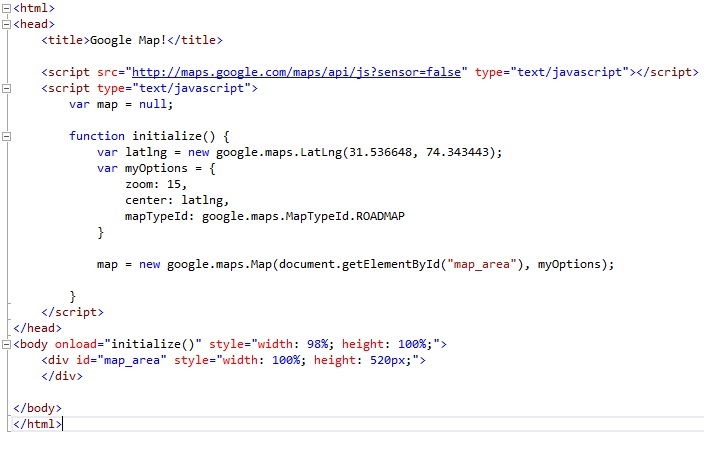
Complete code of all setps will look like:

Add Google Map in Html Page

This is all. You have done. Save file and view in browser.

Sunday, February 28, 2016

How To: Call Java Script Function from Silverlight

In this tutorial we will learn, how to call java script function from silver light using C#. HtmlPage.Window.Invoke function is used invoke the java script method from silver light application.

Add following C# code, where you want to call java script function.

HtmlPage.Window.Invoke("SayHello");

Add following java script code in aspx or html page in silver light web project.

function SayHello()
{
alert('Hello! function called from silverlight');
}

Java script function with parameters:

To call java script function with multiple input parameters, add following C# code in .cs file.

HtmlPage.Window.Invoke("SayHello", "Waqas", "A");

Add following java script function in aspx or html page in silver light web project.

function SayHello(fname, lname)
{
alert('Hello! ' + fname + ' ' + lname +
' -function called from silverlight');
}

This is all. You have done.
Build project and view in browser.

Saturday, February 27, 2016

How To: Integrate HTML Page in Silverlight Application

Integrating Html page in silver light application is little tricky at first. In this tutorial we will learn how to display html page in silver light application step by step.

Add following code in silver light  html page immediate before </form> tag.

<div id="BrowserDiv">
<div style="vertical-align:middle">
<img alt="Close" align="right" src="Images/Close.png" onclick="HideBrowser();" style="cursor:pointer;" />              
</div>
<div id="BrowserDiv_IFrame_Container" style="height:95%;width:100%;margin-top:37px;"></div>
</div>

Add following css code in page.

<style type="text/css">

#BrowserDiv
{
position:absolute;
background-color:#484848;
overflow:hidden;
left:0;
top:0;
height:100%;
width:100%;
display:none;
}

</style>

We need following javascript code to show and hide htm page.

<script type="text/javascript">

var slHost = null;
var BrowserDivContainer = null;
var BrowserDivIFrameContainer = null;
var jobPlanIFrameID = 'JobPlan_IFrame';

$(document).ready(function () {
slHost = $('#silverlightControlHost');
BrowserDivContainer = $('#BrowserDiv');
BrowserDivIFrameContainer = $('#BrowserDiv_IFrame_Container');
});

function ShowBrowserIFrame(url) {
BrowserDivContainer.css('display', 'block');
$('<iframe id="' + jobPlanIFrameID + '" src="' + url + '" style="height:100%;width:100%;" />')
.appendTo(BrowserDivIFrameContainer);
slHost.css('width', '0%');
}

function HideBrowser() {
BrowserDivContainer.css('display', 'none');
$('#' + jobPlanIFrameID).remove();
slHost.css('width', '100%');
}

</script>

Add reference to following jquery file.


<script type="text/javascript" src="Scripts/jquery-1.4.2.min.js"></script>

We have done with html page. Now we will move to silver light user control and open html page on button click.

Add following code in user control (main.xaml).


<Button Content="Show Html Page" HorizontalAlignment="Left" Margin="164,140,0,0" VerticalAlignment="Top" Width="117" Click="Button_Click"/>

Now add following button click handler and a helper function in main.xaml.cs to open html page.


private void Button_Click(object sender, RoutedEventArgs e)
{
ShowBrowser();
}

public void ShowBrowser()
{
try
{
string url = "http://webdesignpluscode.blogspot.com/";
HtmlPage.Window.Invoke("ShowBrowserIFrame", url);
}
catch (Exception ex)
{
throw ex;
}
}

This is all, We have done with code. Now create new folder 'Images' and place an image there 'Close.png' for close button.

Now build project and view in browser.

Sunday, April 26, 2015

How to Convert BitmapImage to Storage File in Windows Phone 8.1 Win RT

BitmapImage to Storage File conversion requires following steps.
  1. BitmapImage to byte array conversion.
  2. Creation of temporary StorageFile.
  3. Writing byte array data on empty storage file.
BitmapImage to byte array conversion

BitmapImage bitmap = ImageBoxPreview.Source as BitmapImage;

RandomAccessStreamReference rasr = RandomAccessStreamReference.CreateFromUri(bitmap.UriSource);

var streamWithContent = await rasr.OpenReadAsync();

byte[] buffer = new byte[streamWithContent.Size];

await streamWithContent.ReadAsync(buffer.AsBuffer(),(uint)streamWithContent.Size, InputStreamOptions.None);


Creation of temporary StorageFile

StorageFile file = await ApplicationData.Current.LocalFolder.CreateFileAsync("temp.jpeg", CreationCollisionOption.ReplaceExisting);


Writing byte array data on empty storage file

using (IRandomAccessStream fileStream = await file.OpenAsync(FileAccessMode.ReadWrite))
{
      using (IOutputStream outputStream = fileStream.GetOutputStreamAt(0))
      {
               using (DataWriter dataWriter = new DataWriter(outputStream))
               {
                      dataWriter.WriteBytes(buffer);
                      await dataWriter.StoreAsync(); // 
                      dataWriter.DetachStream();
               }
               // write data on the empty file:
               outputStream.FlushAsync();
       }
        fileStream.FlushAsync();
}


Complete code will be:


Convert BitmapImage  to Storage File in Windows Phone 8.1 Win RT

Convert BitmapImage to Storage File in Windows Phone 8.1 Win RT.